
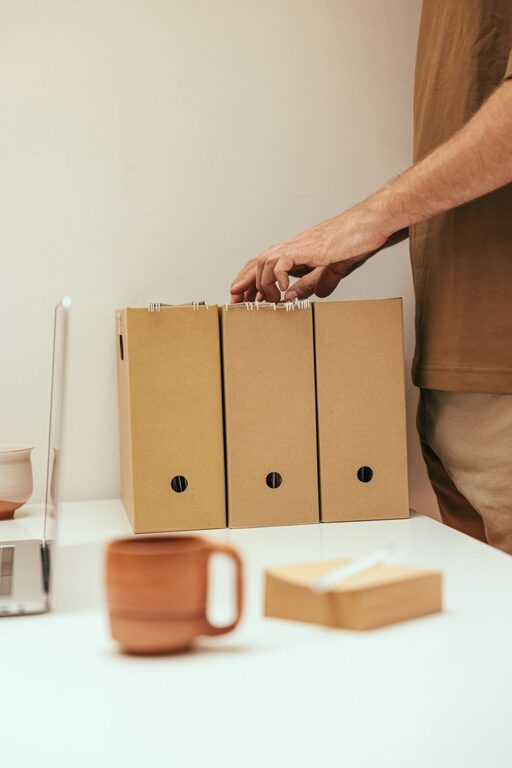
Keeping your computer files organized can save you time, reduce stress, and boost your productivity. Whether you use your computer for work, school, or personal projects, having a clear system for file management helps you quickly find what you need and maintain a clutter-free digital environment. In this post, we’ll explore practical tips for organizing files on your computer, so you can work smarter and stay organized.
Why Organizing Files Matters
When your files are scattered or stored randomly, it can be frustrating and time-consuming to locate important documents, photos, or projects. An organized file system helps by:
– Making files easier to find
– Reducing the chance of accidentally deleting or losing files
– Improving your overall computer performance by avoiding clutter
– Helping with backups and file sharing
Getting Started: Assess Your Current File System
Before you create a new organization system, take some time to review how your files are currently stored. Ask yourself:
– What types of files do I have? (Documents, photos, videos, spreadsheets, etc.)
– Which files do I use most often?
– Are there files I no longer need and can delete or archive?
– How is my current folder structure set up?
Knowing these details will help you design a system that fits your needs.
1. Create a Clear Folder Structure
A logical folder structure is the backbone of file organization. Follow these tips to set it up effectively:
Use Broad Categories
Start with main folders based on broad categories. For example:
– Work
– Personal
– School
– Photos
– Projects
Add Subfolders
Within each main folder, create subfolders to organize files further. For example, under “Work,” you might have:
– Reports
– Presentations
– Meeting Notes
This hierarchy makes it easier to drill down to specific files.
Be Consistent
Use consistent naming and folder organization across your computer. For instance, choose whether to use spaces or underscores in folder names and stick with it.
2. Use Descriptive and Consistent File Names
File names should be clear and descriptive so you can identify files without opening them. Some tips:
– Include dates in file names for version tracking (e.g., ProjectProposal_2024-06-01.docx)
– Use keywords that describe the file’s contents
– Avoid vague names like “Document1” or “Untitled”
A consistent naming system simplifies searching and sorting.
3. Take Advantage of File Tags and Metadata
Many operating systems allow you to add tags or labels to files. Tags provide an additional way to categorize and find files quickly. For example, you could tag files by project name, priority level, or status (“Draft,” “Final”).
Explore your computer’s file explorer or finder to learn how to add and use tags effectively.
4. Regularly Delete or Archive Unnecessary Files
Over time, unnecessary files accumulate and create digital clutter. Schedule regular times (monthly or quarterly) to:
– Delete duplicate or outdated files
– Archive files you want to keep but don’t need immediate access to (move to an external drive or cloud storage)
This practice keeps your file system lean and efficient.
5. Use Cloud Storage for Easy Access and Backup
Cloud storage services like Google Drive, Dropbox, or OneDrive allow you to:
– Access files from multiple devices
– Share files easily with others
– Keep your files backed up automatically
Organize your cloud folders following the same structure as your computer to maintain consistency.
6. Utilize Search and Shortcut Tools
Even with a great folder structure, sometimes searching is faster. Most operating systems have powerful search functions:
– Use keywords or file extensions (e.g., “.pdf”) in your search
– Learn keyboard shortcuts to open search quickly (e.g., Windows key + S on Windows, Command + Space on Mac)
You can also create shortcuts to frequently used folders or files on your desktop or quick access panel to save time.
7. Back Up Your Files Regularly
Backing up your files prevents data loss due to hardware failure, accidental deletion, or viruses. Use external hard drives, cloud backup services, or both. Set up automatic backups if possible to keep your files safe without extra effort.
8. Keep Your Desktop Clean
A cluttered desktop can slow your computer and make it hard to find files. Use your desktop only for temporary files or shortcuts. Regularly move files from the desktop into their correct folders.
Conclusion
Organizing files on your computer might take some time upfront, but the benefits are well worth it. With a clear folder structure, consistent naming, regular maintenance, and reliable backups, you’ll have a clean, efficient digital workspace that helps you focus on what matters.
Start small, build habits, and enjoy the peace of mind that comes with a well-organized computer. Happy organizing!